
Five phone settings that make reading easier
A few small changes can make your phone much more comfortable to read. Start with one, try it in an app you use every day, and keep what helps.
1. Make the text larger
Open your phone’s accessibility settings and look for text size. Increase it a little, then check a message or a page you read often. Bigger is useful only if it still feels comfortable to navigate. Some apps also have their own text-size control.
2. Try bold text
Bold text gives letters a stronger shape without making everything much larger. Try it on a familiar screen and compare. You can turn it back off if the page feels too heavy.
3. Increase contrast
Pale gray text and translucent menus can be harder to read. Your phone’s accessibility controls may offer increased contrast or reduced transparency. These settings can make the boundaries between text, buttons, and backgrounds clearer.
4. Choose comfortable brightness
A bright screen in a dim room can feel harsh; a dim screen outdoors can disappear. Adjust brightness for the room you are in. Try light and dark appearance, too: the better choice is whichever makes the words easiest for you to see.
5. Use zoom when you need a closer look
For small details that don’t respond to text-size settings, accessibility zoom can help. Learn how to zoom back out before relying on it, so you feel comfortable returning to the whole screen.
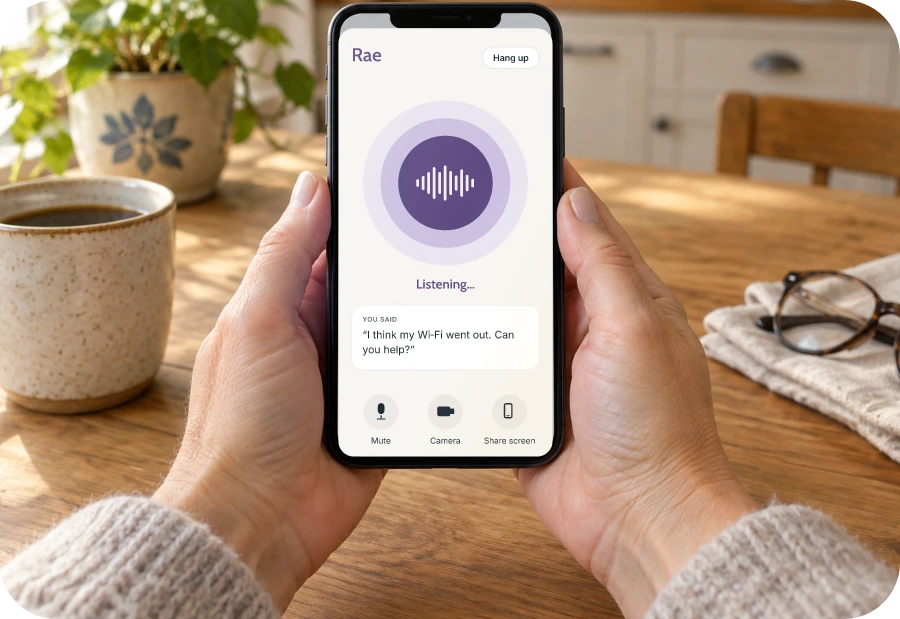
Ask Rae to walk through it with you
You can say, “Where do I turn on bigger text?” With screen sharing, Rae can help you find the next control. Tell Rae which phone and screen you are using; labels and available settings vary. Change one thing at a time so you know what made the difference.